Building and Exporting 3D Models for Arium using Blender3D
This video walks through a workflow for building 3D models to use in Arium using Blender
Instructions for exporting from Blender to Arium
There are a a few main considerations to make when exporting 3D models from Blender for use in Arium. These are file type, material (what you want the object to look like) and physics or collisions (whether you want to be able to walk through the object or not).
Accepted File Types
Arium supports the GLTF / GLB 3D model type. This model type was built for use on the web and has certain advantages when it comes to file size and performance. Specifically, Arium uses the GLB (Binary) form of this file type.
To export a .glb file from Blender, make sure you are using a recent version of the software (2.93 or higher is best). Then click File > Export > gLTF 2.0 (.glb/.gltf):

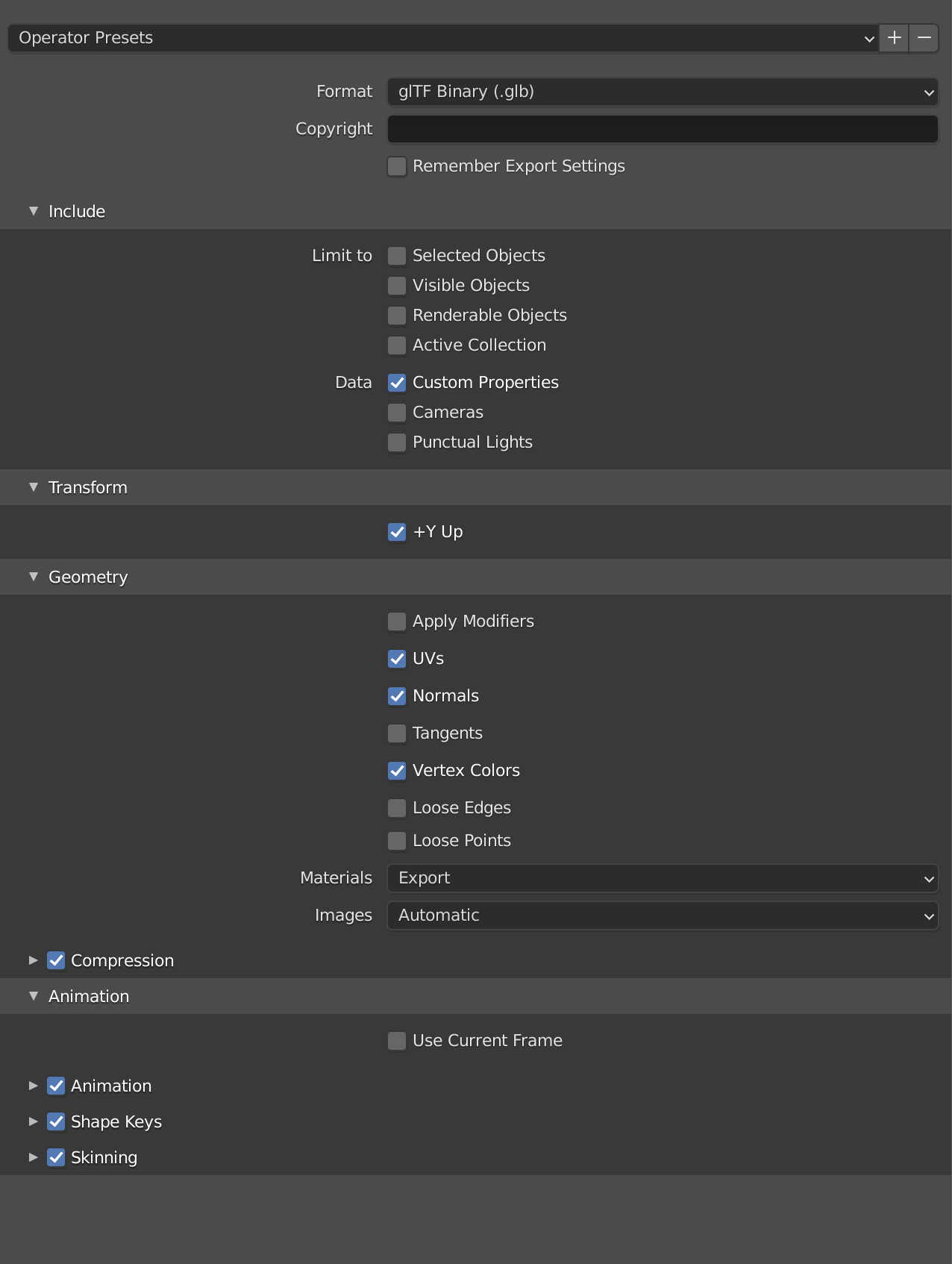
Within the export window, ensure you are choosing the gLTF Binary (.glb) format:

Make sure to include Data > Custom Properties:

Note: by default, Blender includes your entire scene in an export. If you choose, you can export a selection from your scene by clicking Limit To > Selected Objects in which case it will export everything selected in the current viewport.
Use compression to reduce your model's file size:
Model Materials
The GLTF / GLB file format supports embedded materials. These materials can include texture files (images which are used to determine how a model looks). For the latest documentation on exporting material within GLTF files, please see Blender's website: https://docs.blender.org/manual/en/2.80/addons/io_scene_gltf2.html
Custom Properties
Imported GLB models can have certain special properties related to rendering or physics. These determine whether an individual can walk through an object or not, or whether an object casts a shadow or not.
Objects within the space can have special properties:
| Custom Property | Effect in Arium |
|---|---|
| collidable | Collidable objects are objects that you cannot walk through. The most common example is a wall. |
| ground | Ground objects are objects which determine your height in space. If you are walking on a hill and it is marked as ground, you will always stay at the current height of the ground on the hill. |
| invisible | With this set, the object will be invisible. Useful for creating invisible collision meshes |
| castShadow | This object will cast shadows from lights that send a shadow |
| receiveShadow | This object will receive shadows from elements that cast shadows. |
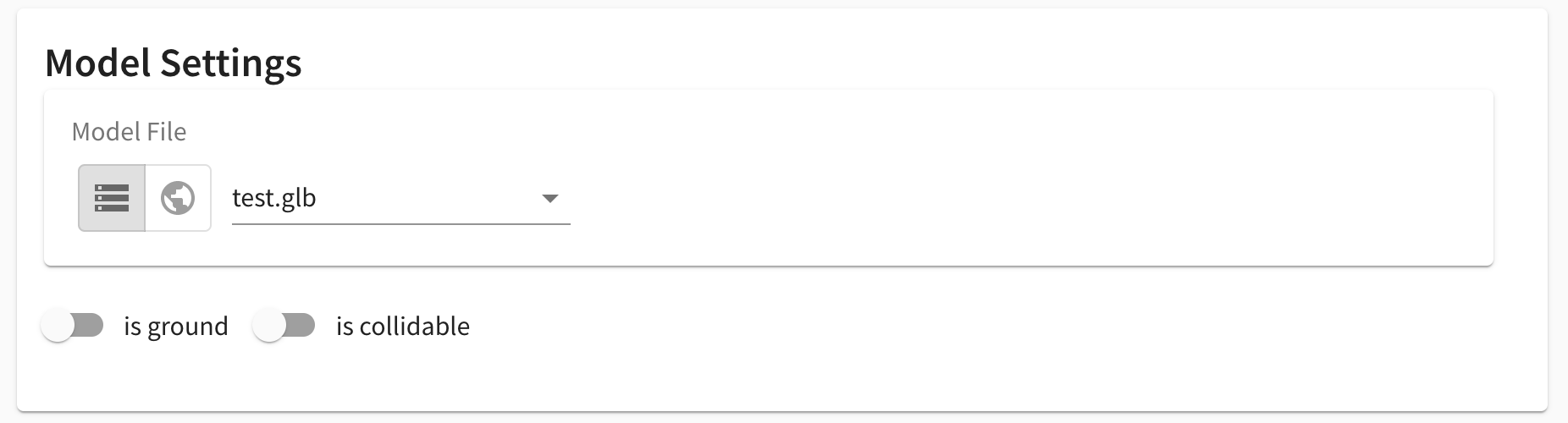
It is possible to mark 3D models as ground or collidable from within the Arium editor by using the isGround and isCollidable flags within the model settings panel:
To mark one of these properties from within Blender, select an object in the viewport:
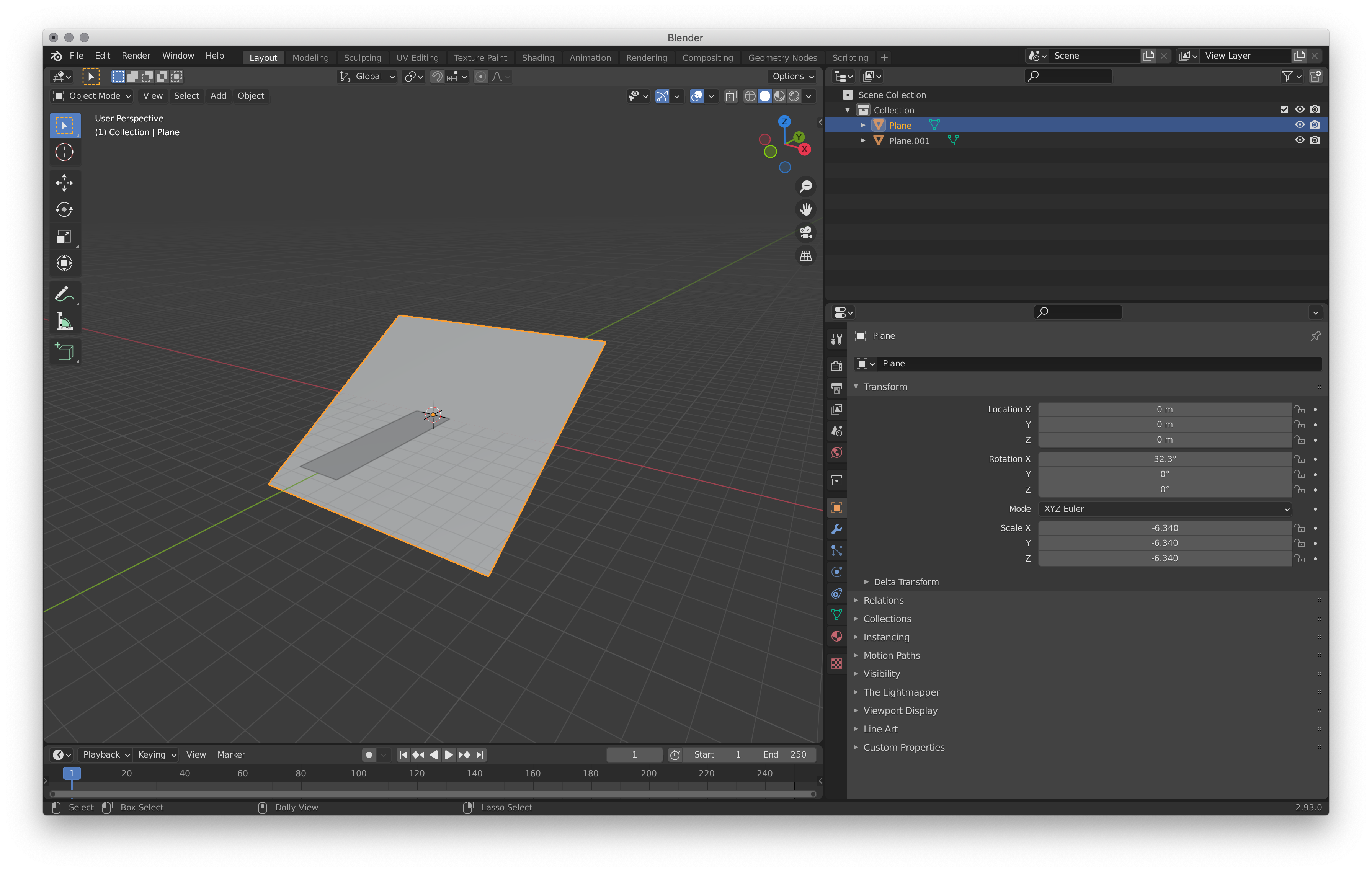
In the Properties Panel, under the Object Properties sub-panel, open the Custom Properties Dropdown and click Add. To set the plane as ground, click Edit to change the Property Name from "prop" to "ground" or "collidable", or any of the above properties:


Now, the object should be automatically marked as ground or collidable within Arium.
Adding the model to Arium
To add the exported glb model to Arium, follow the instructions in Content Editor - 3d Models