Documenting Your Space
You may well like to record your space for archival or promotional purposes. Here are a few ways you can record within an Arium space. You can record from the audience view in your space or using Arium's built-in Documentation Tool using Screen Capture Software.
Recording from the Audience View
You can record directly from the audience view of your space.
- Hiding the User Interface: press the
hkey to hide Arium's user interface elements (buttons, logo, chat, etc.). See a comparison below: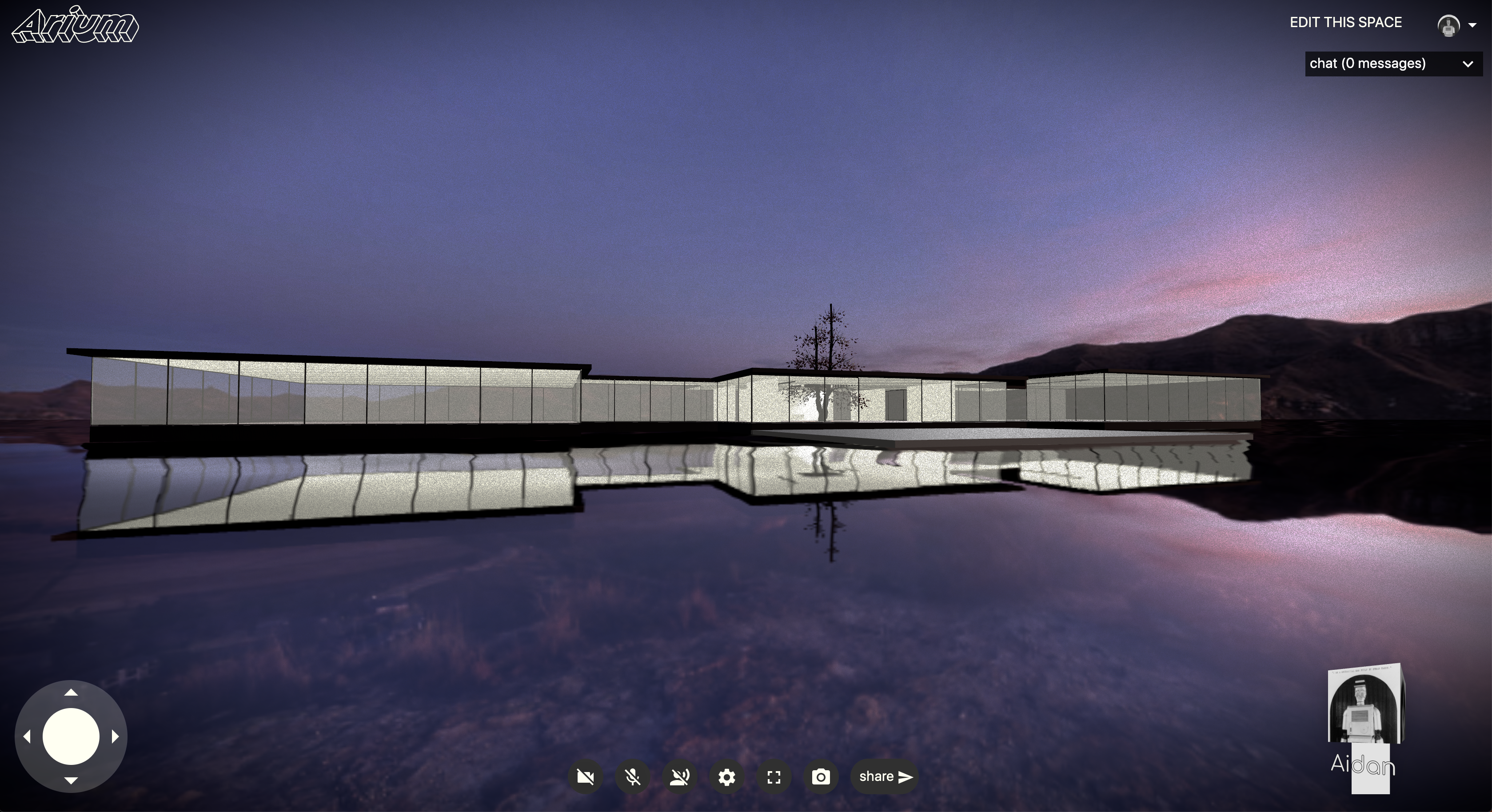 User Interface Shown
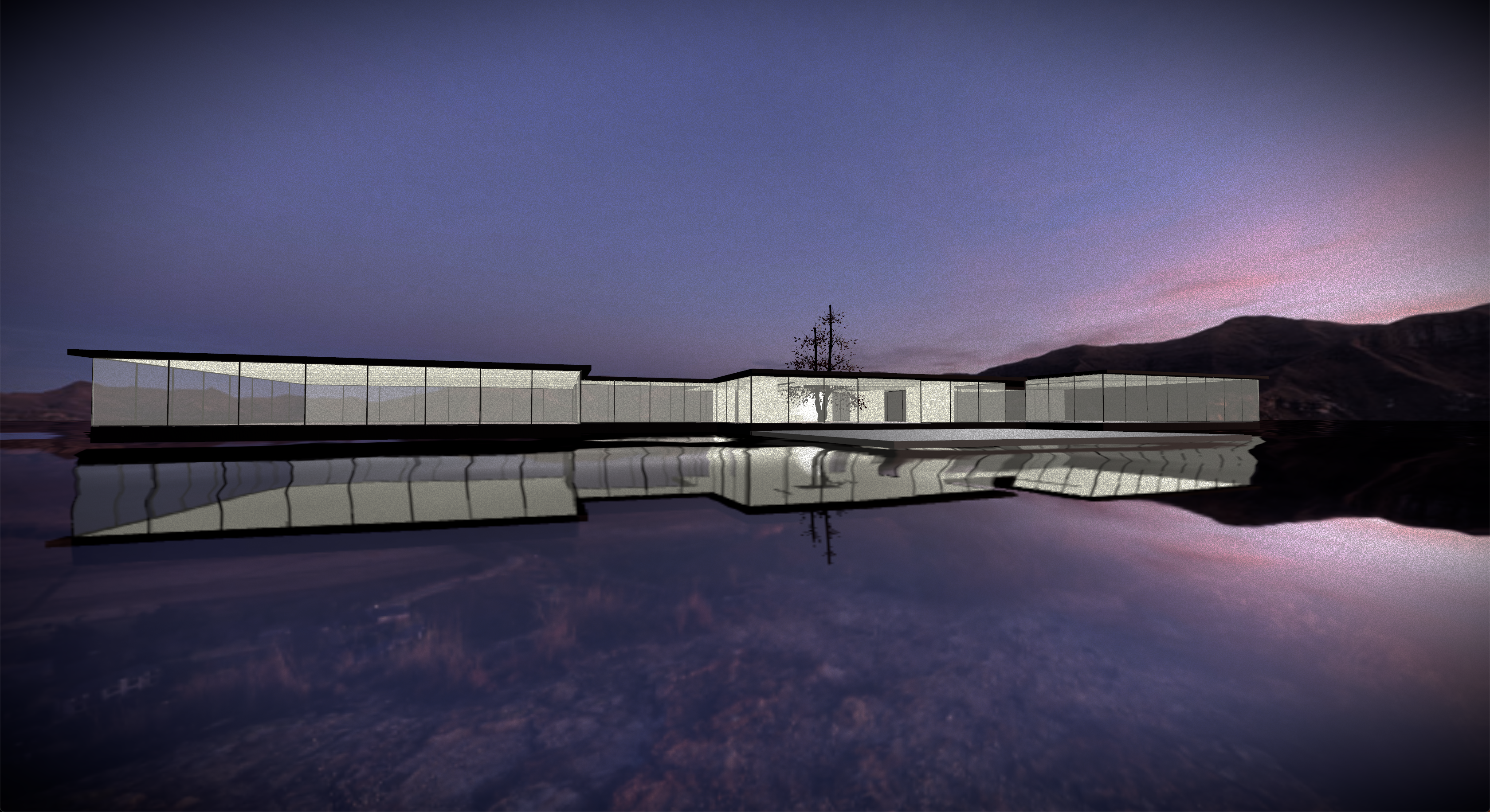 User Interface Hidden
Documentation Tool
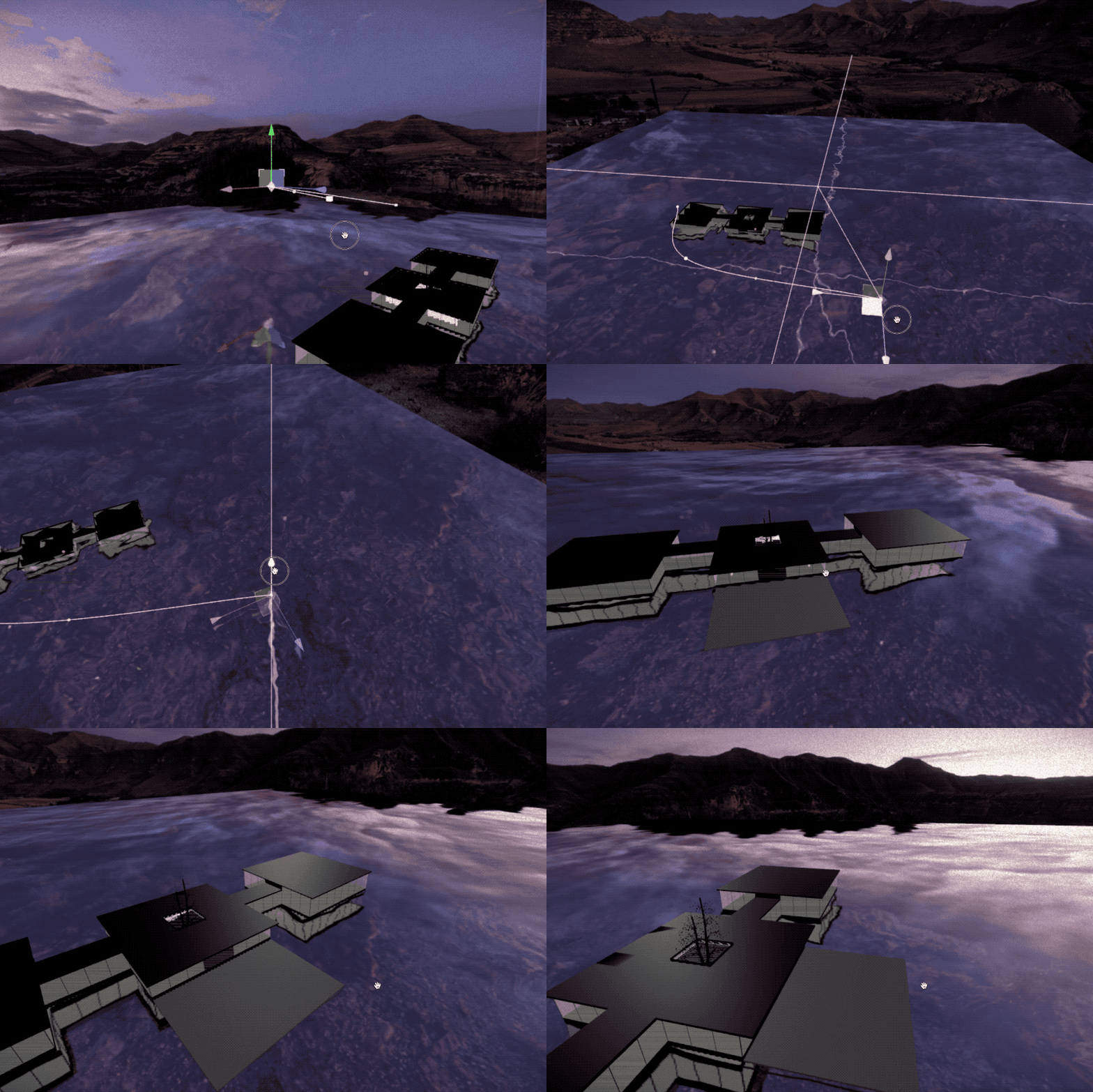
Arium has a built-in documentation tool which enables you to capture sweeping shots of your virtual space.
To access this tool, add ?documentation=true to your space URL (i.e. https://arium.xyz/spaces/documentation-example?documentation=true). You should notice that the space is different than usual. There is no user interface within documentation mode and the navigation is different.
- Use the spacebar to switch between Setup Mode and Capture Mode
Setup Mode
- Camera Mark: the red cube represents the point where the camera will look. Use the transform controls to move this mark towards the center of your scene or some other relevant point in space.
- Camera Path: the white line represents the path that the camera will follow in capture mode (while pointing at the camera mark). Adjust the control points (the white boxes) to move this path in space.
- Add control points with the
+key - Remove control poitns with the
-key
- Add control points with the
- Speed Control Adjust the speed the camera follows on the path using the
{and}keys to slow down and speed up the camera respectively.
Capture Mode
Once in capture mode, use one of the screen capture utilities above to capture your scene.
Screen Capture Software
Still
Mac OS: use the built-in Screenshot Tool to capture images of your entire screen or a portion of the screen.
Windows: use the built-in Snipping Tool or an external utility such as ShareX.
Capturing Videos
Mac OS: on more recent Mac OS's, use the built-in Screenshot Tool to capture videos. Otherwise, you can use QuickTime Player or an external utility such as GifBrewery or Open Broadcaster Software (OBS) to create video screen captures.
Windows: use an external utility such as ShareX or Open Broadcaster Software (OBS) to create video screen captures.