Advanced Audio Routing
There are a few reasons you may want to use something other than a built-in webcam microphone as your audio input in Arium. If you are a DJing, for instance, you may want to route the audio from an audio capture card to Arium. Or if you are hosting participants in a Zoom room, you may want want to rebroadcast that audio within Arium.
This guide covers the use of the free and open source BlackHole Virtual Audio Driver on a Mac OS system to route audio into Arium. What is BlackHole? According to its documentation, "BlackHole is a modern MacOS virtual audio driver that allows applications to pass audio to other applications with zero additional latency." Basically, this means that BlackHole allows you to use audio from one software within another.
Note: if you are working on a Windows computer, see Jack Audio or VB-Cable as potential alternatives to BlackHole. Both software provide similar functionality.
Route Audio from Zoom into Arium (using BlackHole)
Install BlackHole according to the instructions found here: https://github.com/ExistentialAudio/BlackHole#installation-instructions
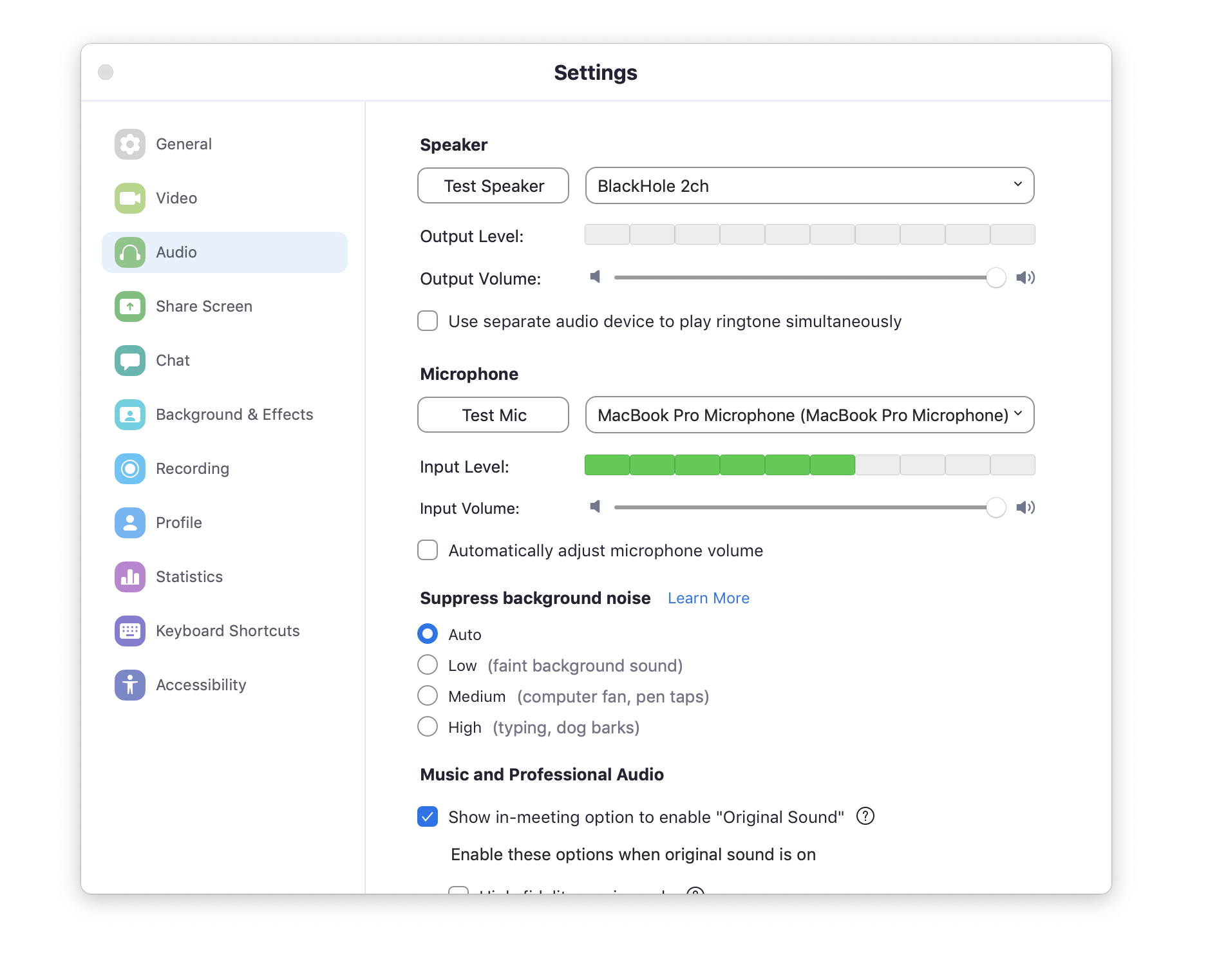
Once installed, you can use Blackmagic as both an audio input and output. First, within Zoom Settings > Audio, set the Speaker output to "BlackHole." Note that this will mean that you no longer hear the output from the Zoom window.
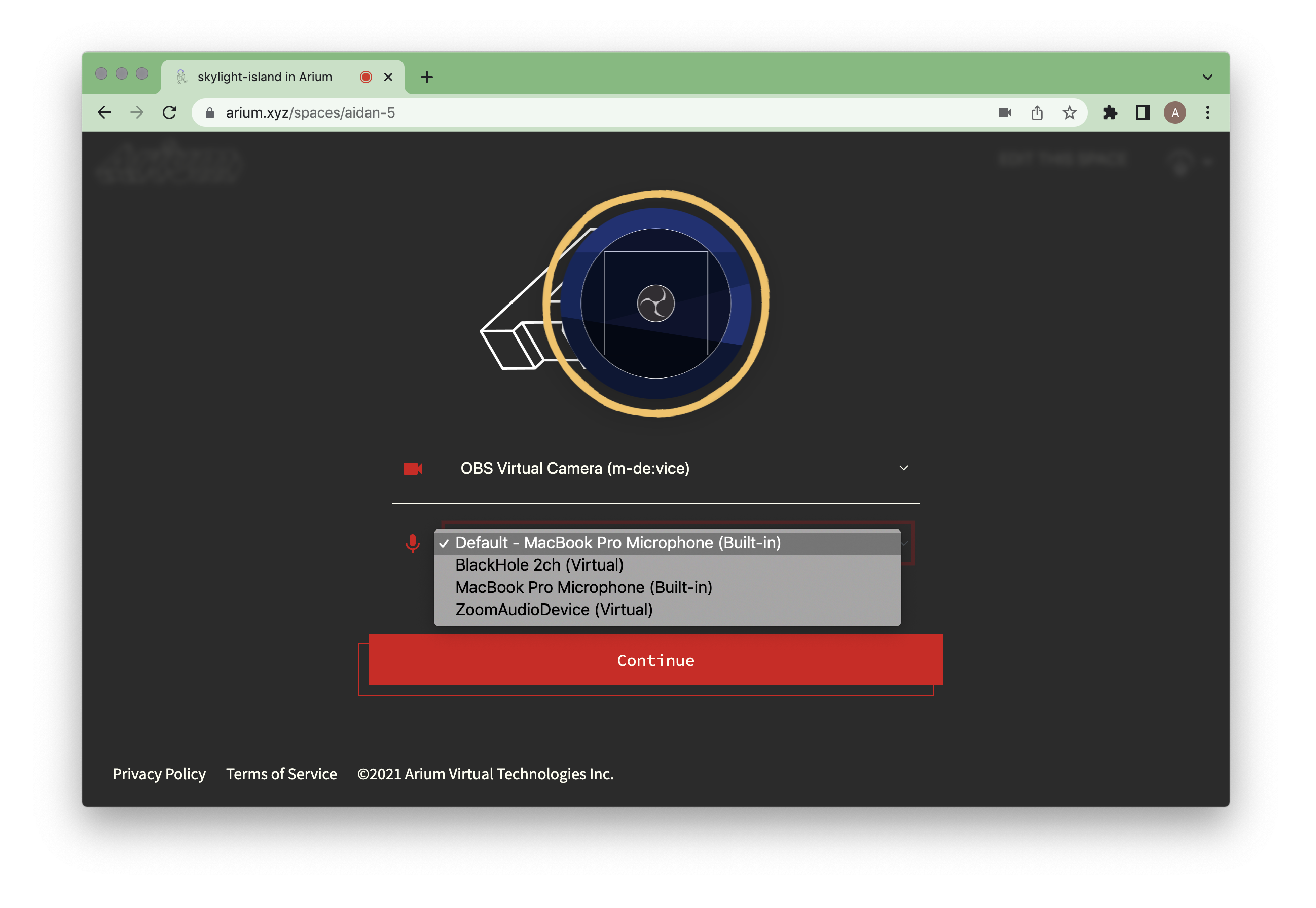
Next, within Arium, set BlackHole device as the audio input.
 At this point, participants within the Arium space should now hear whatever audio is being played within the Zoom meeting. Congratulations!